> ## Documentation Index
> Fetch the complete documentation index at: https://docs.jadenet.id/llms.txt
> Use this file to discover all available pages before exploring further.
# Navigation and common actions
> Use JADE-ELS list views, detail views, search, filters, actions, reports, and exports.
JADE-ELS uses a consistent list-and-detail interface. A **list view** displays records; a **detail view** contains the selected record's fields, tabs, related lists, and actions.
## Common actions
| Action | Purpose |
| -------------- | ---------------------------------------------------------- |
| New | Create a record in the current list |
| Save | Save the current record and remain on it |
| Save and New | Save the current record and begin another |
| Edit / pencil | Open or switch a record into editing mode |
| Delete / X | Delete a selected record when permissions and status allow |
| Refresh | Reload current data from the server |
| Search | Find records using free text |
| Column filter | Filter on values in a specific column |
| Export to | Export permitted list data |
| Show in Report | Open an applicable report for the record or list |
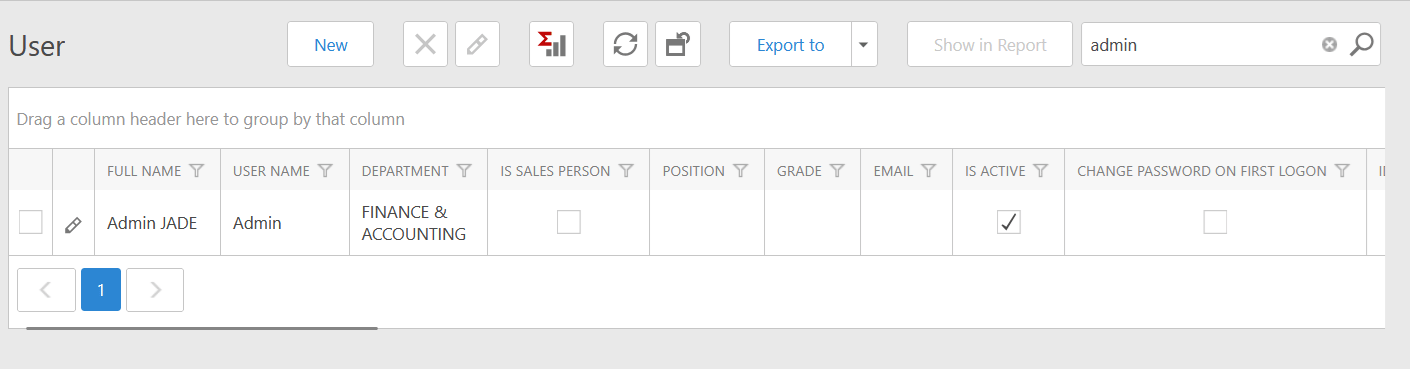 The screenshot is from an earlier interface version. Current v26.1 styling may differ, but the list-and-detail pattern remains the same.
## Work with a list
Select the menu group, then the required submenu. The list shows only records permitted for your role and data scope.
Use the search box for broad matching. Use a column filter for a specific field. Clear old filters when expected records are missing.
Select a column header to sort. Where enabled, drag a column to the grouping area to organize records by status, customer, branch, or another field.
Select the row or edit icon. Review the header, tabs, related lists, status, and available actions before making changes.
## Enter a record safely
* Search before creating master data to prevent duplicates.
* Complete fields marked with an asterisk before saving.
* Confirm office or branch, date, customer/vendor, job, currency, exchange rate, amount, and reference.
* Add required supporting files before submitting for approval.
* Refresh after another user approves or posts a linked transaction.
* Avoid simultaneous editing of the same record.
## Why an action may be unavailable
An action can be hidden or disabled because your role lacks permission, no record is selected, the document is already approved/posted/closed, the period is locked, source data is missing, or the action applies only to another view.
See [Troubleshooting](/support/troubleshooting) if the expected action remains unavailable.
The screenshot is from an earlier interface version. Current v26.1 styling may differ, but the list-and-detail pattern remains the same.
## Work with a list
Select the menu group, then the required submenu. The list shows only records permitted for your role and data scope.
Use the search box for broad matching. Use a column filter for a specific field. Clear old filters when expected records are missing.
Select a column header to sort. Where enabled, drag a column to the grouping area to organize records by status, customer, branch, or another field.
Select the row or edit icon. Review the header, tabs, related lists, status, and available actions before making changes.
## Enter a record safely
* Search before creating master data to prevent duplicates.
* Complete fields marked with an asterisk before saving.
* Confirm office or branch, date, customer/vendor, job, currency, exchange rate, amount, and reference.
* Add required supporting files before submitting for approval.
* Refresh after another user approves or posts a linked transaction.
* Avoid simultaneous editing of the same record.
## Why an action may be unavailable
An action can be hidden or disabled because your role lacks permission, no record is selected, the document is already approved/posted/closed, the period is locked, source data is missing, or the action applies only to another view.
See [Troubleshooting](/support/troubleshooting) if the expected action remains unavailable.